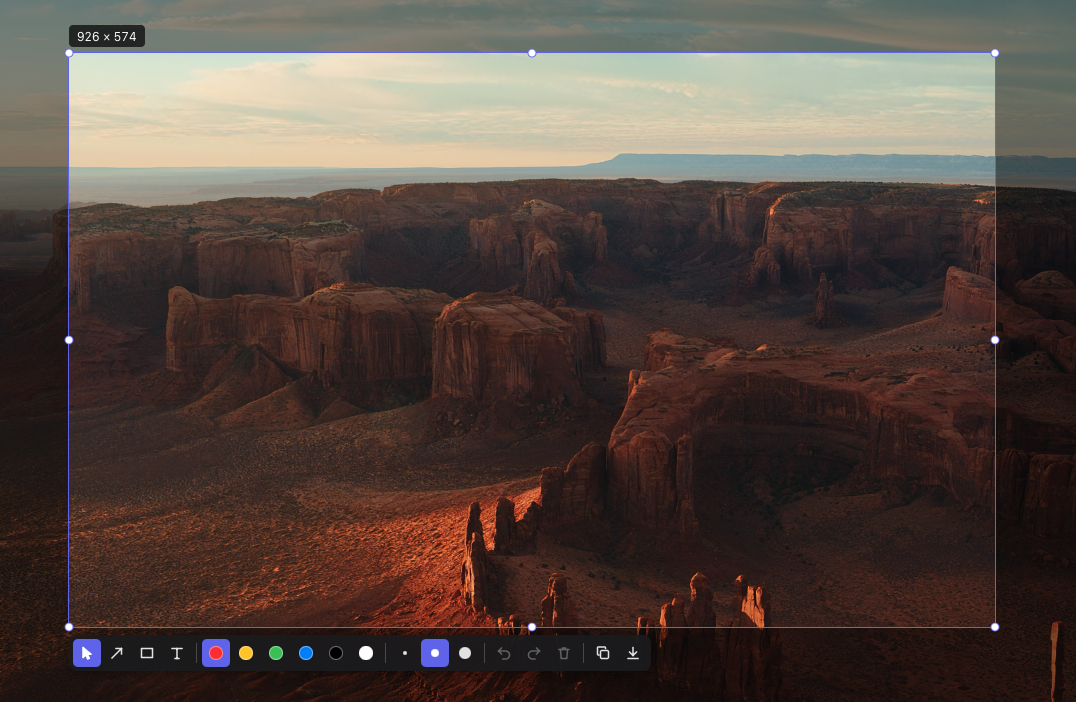
CAPTURE, ON YOUR TERMS
Catch the moment.
Press ⌘ ⇧ 2. Every display freezes while you select exactly what you need. Move and resize your region before you commit.
Capture a region of your Mac screen, add arrows and notes, then copy or save as PNG.
macOS 14+ · Apple silicon · Free & open source
Unsigned beta; not notarized by Apple. macOS may block first launch. Before you install
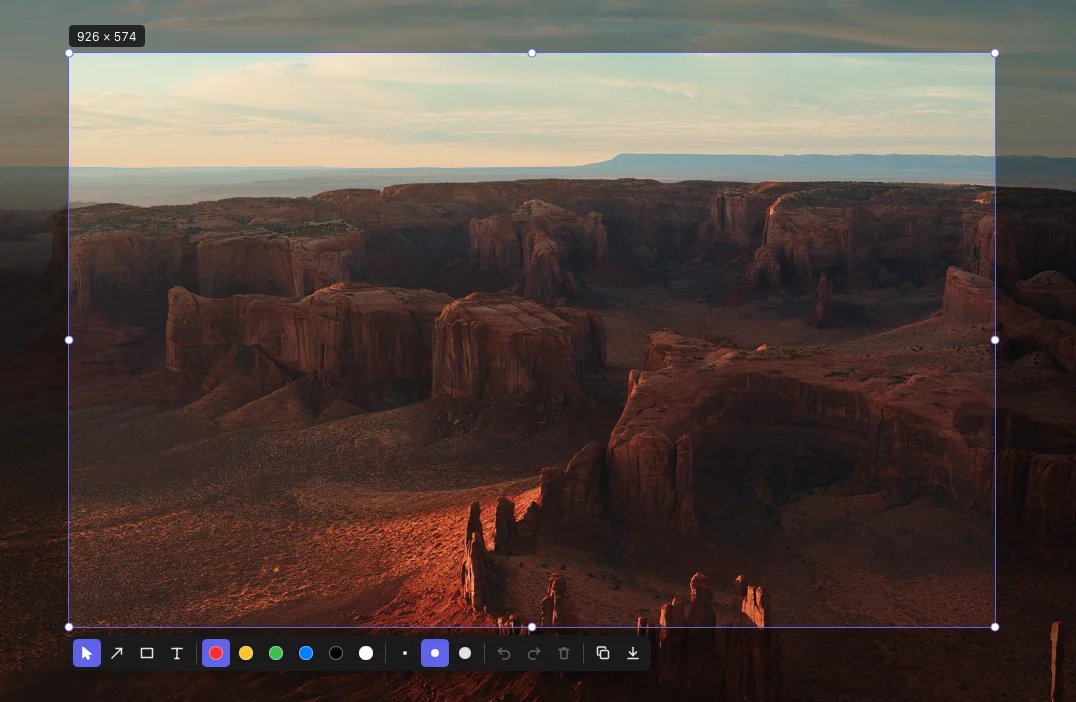
A real capture. A few thoughtful tools. Nothing in your way.
LESS FRICTION. MORE CLARITY.
A focused set of tools for turning “look at this” into something worth sharing.
CAPTURE, ON YOUR TERMS
Press ⌘ ⇧ 2. Every display freezes while you select exactly what you need. Move and resize your region before you commit.
A LITTLE CONTEXT GOES A LONG WAY
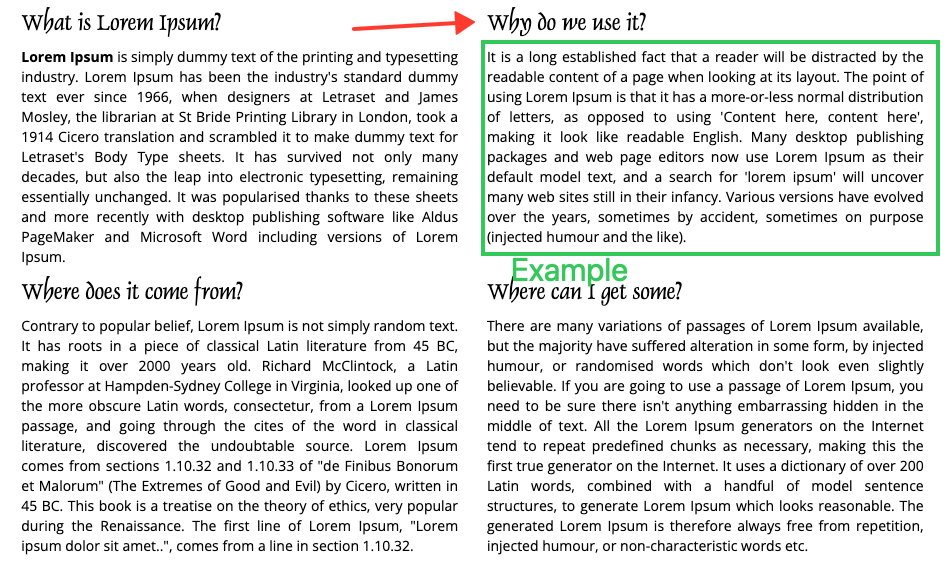
An arrow. A rectangle. A few words. Six colours, three sizes, and undo for when your first idea isn’t your best.
READY FOR THE NEXT THING
Send your capture to the clipboard, or save it as a PNG. Focus returns to the app you were using.
QUIETLY IN YOUR CORNER
Right there in your menu bar. No Dock icon to work around. Full-resolution captures, even on mixed Retina displays.
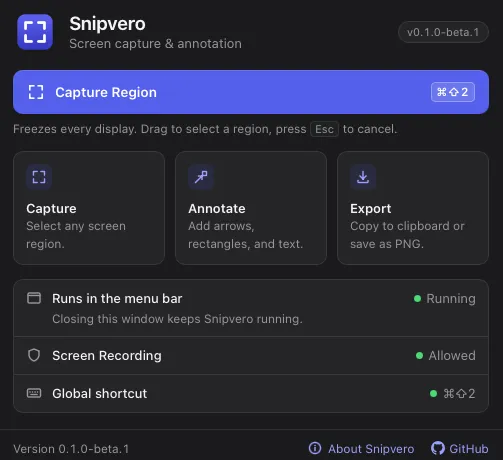
FROM THOUGHT TO SCREENSHOT
Use ⌘ ⇧ 2 or the menu bar. Drag to select a region on any display.
Point it out, frame it, or leave a note. Move and edit your annotations freely.
Finish editing your note with Esc, then press Return to copy. Or use ⌘ S to finish the note and save a PNG.
While editing a note, Return adds a line and ⌘ C copies selected text, not the capture. ⌘ S finishes the note and saves the capture.Read the official keyboard shortcuts
YOUR SCREEN IS YOUR BUSINESS.
Snipvero has no network code. No accounts, no uploads, no analytics, no update checks. Captures stay in memory until you copy or save them.
Copied images go to the system clipboard, where other apps can access them. Saved images go only where you choose.
Don’t take our word for it. Read the sourceA FEW GOOD QUESTIONS
Yes. Snipvero is free and open source under the MIT License. You can inspect the code, build it yourself, and contribute on GitHub.
The current beta supports macOS 14 (Sonoma) or later on Apple silicon (M1 or later). Intel Macs are not supported. Windows capture is planned, but is not available.
This beta is not signed with an Apple Developer ID and has not been notarized by Apple. Only open it if you trust the source. If blocked, go to System Settings → Privacy & Security → Security → Open Anyway. Do not disable Gatekeeper. You can also build from source instead.
macOS requires this permission to read the screen for a screenshot. Snipvero does not record video or audio. Enable it in System Settings → Privacy & Security → Screen & System Audio Recording, then restart Snipvero if needed.
Select a region on any connected display, then add arrows, outlined rectangles and text. You can move, resize and edit annotations, with undo and redo. Copy the image or save it as PNG. A single selection cannot span multiple displays.
The shortcut, colours and sizes are fixed for now. There are no settings or launch-at-login option yet. Some runtime behaviours have not been manually validated. Read the release notes for the current limitations, and report issues on GitHub.

A SMALL TOOL FOR YOUR EVERYDAY.
Free, open source, and right there when you need it.
Download for Macv0.1.0-beta.1 · 2.2 MB · DMG
macOS 14+ · Apple silicon · Free & open source
Open the downloaded DMG and drag Snipvero to Applications.
Open Snipvero. If macOS blocks it, follow the official first-launch instructions below, only if you trust the source. Never disable Gatekeeper.
Allow Screen Recording when prompted. Restart Snipvero if capture still does not work.